How to tell which engine a game uses
Three checks in a game folder tell Unity, Unreal Engine and Godot apart, and Mono from IL2CPP. A table of the telltale files for each engine.
By EncidXVII, .
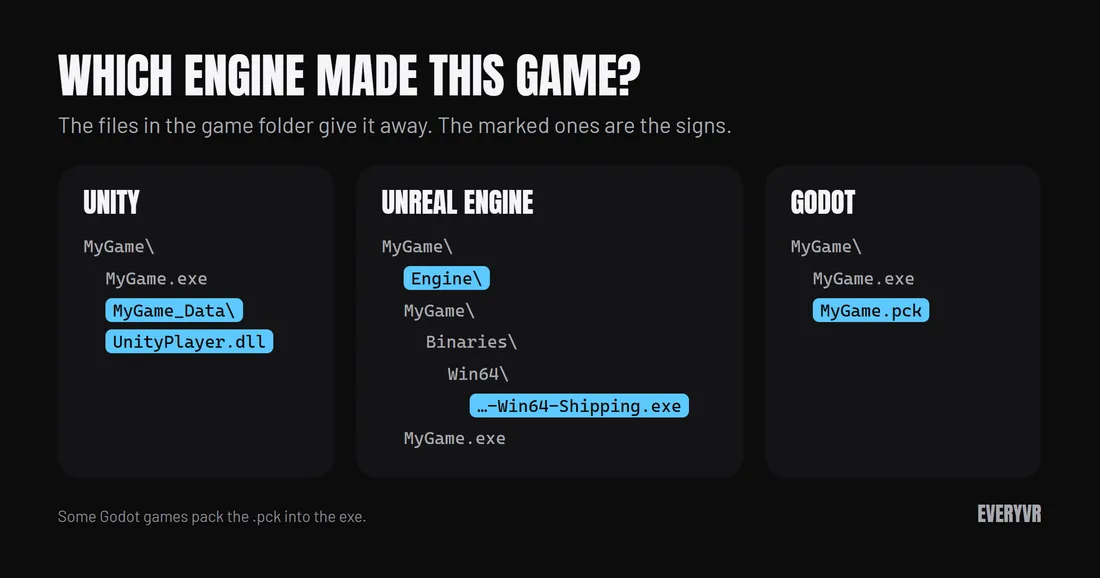
You can usually tell a game’s engine from the files beside its exe. A Unity game has a <Game>_Data folder next to
the exe, an Unreal Engine game has an exe ending in -Win64-Shipping.exe inside Binaries\Win64, and a Godot game
often has a .pck file with the exe’s name. Which engine a game uses decides whether PortXR can put it in
VR, and how.
Find the game folder
Open the folder the game is installed in. Your store’s library can open it for you, and once a game is in PortXR, its page shows the folder in the Troubleshooting row at the bottom.
Check 1: what sits beside the exe
| Engine | Look for | Notes |
|---|---|---|
| Unity | A folder named after the exe with _Data added, such as MyGame_Data beside MyGame.exe |
Inside it, globalgamemanagers, data.unity3d or mainData |
| Unity | UnityPlayer.dll |
The engine’s native code, listed in Unity’s Windows build files |
| Unreal Engine | An Engine folder at the top of the game folder |
It holds the engine’s crash reporter and prerequisites |
| Godot | A .pck file with the same name as the exe, such as MyGame.pck beside MyGame.exe |
Some Godot games pack it into the exe instead |
A Godot game that packs its data into the exe shows only the exe. Check 2 and check 3 still help there.
Check 2: where the real exe is
Unreal Engine games often start through a small exe at the top of the folder. The exe that runs the game sits deeper,
in <Project>\Binaries\Win64\, and its name ends in -Win64-Shipping.exe. For example:
MyGame\
  Engine\
  MyGame\
    Binaries\
      Win64\
        MyGame-Win64-Shipping.exe
  MyGame.exe
If you find a -Win64-Shipping.exe, the game is made with Unreal Engine. PortXR takes that file, or an Engine
folder at the top, as the sign of an Unreal Engine game.
Check 3: where the saves go
Each engine keeps its save files in its own kind of place. PortXR uses this to tell the engine of Steam games that are not installed yet:
| Engine | Saves under a folder named |
|---|---|
| Unity | AppData\LocalLow |
| Unreal Engine | Saved\SaveGames |
| Godot | app_userdata |
Games choose their own save paths, so this check can mislead for a game that moves them. Use it when the first two checks leave you unsure.
Mono or IL2CPP, for Unity games
Unity can build a game’s code in two ways.
| Backend | Telltale |
|---|---|
| IL2CPP | GameAssembly.dll beside the exe |
| Mono | No GameAssembly.dll, and a Managed folder inside <Game>_Data |
PortXR works with both, from Unity 2018.4 to Unity 6. A Mono game built with Unity’s code trimming, which is rare, is the one Unity case it cannot run.
What the engine means for VR
| Engine | What PortXR does |
|---|---|
| Unity 2018.4 to Unity 6 | Full VR, 3D screen or VR screen |
| Unreal Engine 4.22 to 5.6 | Full VR, 3D screen or VR screen |
| Godot 4.3 and newer | Full VR, 3D screen or VR screen |
| Godot 4.0 to 4.2 | Full VR through the engine’s own OpenXR |
| Older Unreal Engine, Godot 3 | The VR screen only |
| Other engines | Not listed |
The game also has to be 64-bit, render with Direct3D 11 or 12, and have no anti-cheat. The supported games guide lists every condition.
Or let PortXR look
You do not need to open any folder to use PortXR. Its library finds your games on Steam, Epic and GOG, reads the engine from the files above, and marks each game Full VR, VR screen or the reason it cannot run. For Unity games it reads the Unity version and whether the game is Mono or IL2CPP.
For Steam games you have not installed yet, the Not installed shelf shows the ones that would get full VR. It learns their engine from Wikidata’s lists of Unity, Unreal Engine and Godot games, and, for games Wikidata does not know, from where Steam says their cloud saves go. Both lists are downloaded whole, so your library is not sent anywhere.
To try a game, follow the install guide. If the game you checked is not in PortXR’s list, the troubleshooting guide explains why.