How to play flat PC games in VR
What it takes to play a non-VR Unity, Unreal Engine or Godot game in a headset, which games work, what does not, and the three steps with PortXR.
By EncidXVII, . Last updated .
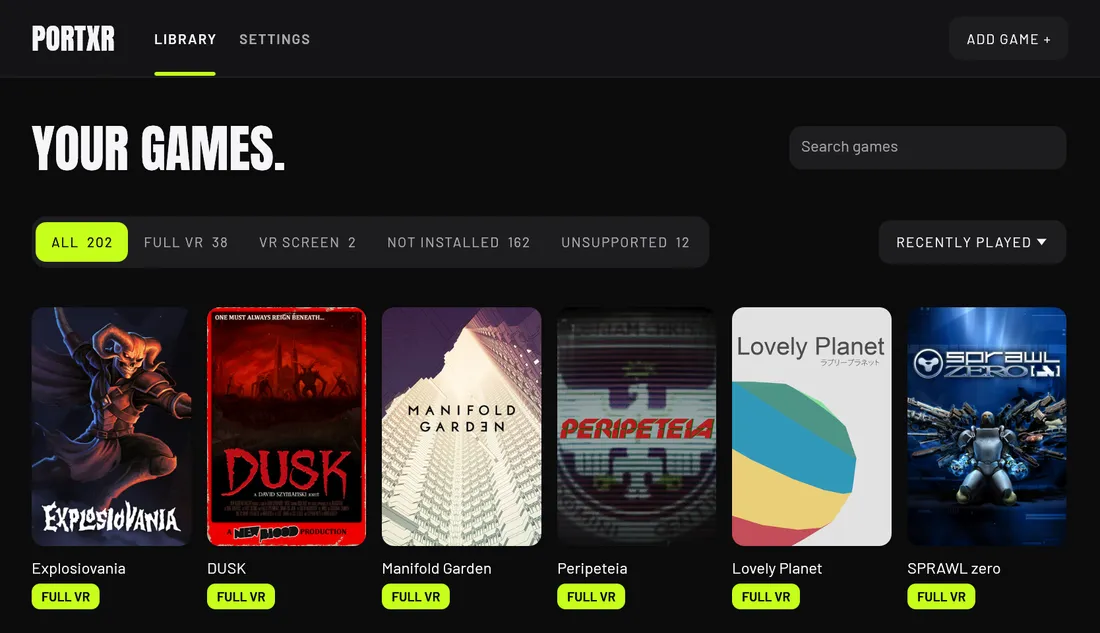
You can play many flat PC games in a headset by adding VR to the game itself: the game then draws a picture for each eye, follows your head, and takes your controllers in place of the keyboard, mouse or gamepad. You need a PC VR headset, an OpenXR runtime and a 64-bit single-player game that renders with Direct3D 11 or 12. PortXR does this for games made with Unity, Unreal Engine and Godot.
What is possible, by engine
Whether a flat game can go into VR depends mostly on the engine it was made with. PortXR knows the engines below and reaches inside games built on them to change how the camera draws.
| Engine | With PortXR |
|---|---|
| Unity 2018.4 to Unity 6 (Mono and IL2CPP) | Full VR, 3D screen or VR screen |
| Unreal Engine 4.22 to 5.6 | Full VR, 3D screen or VR screen |
| Godot 4.3 and newer | Full VR, 3D screen or VR screen |
| Godot 4.0 to 4.2 | Full VR through the engine’s own OpenXR, without PortXR’s menu |
| Older Unreal Engine, Godot 3 | The flat game on a VR screen only |
| Any other engine | Not listed |
Not sure which engine a game uses? How to tell which engine a game uses has three checks in the game folder. PortXR’s library also shows it for every game it finds.
What you need
- A PC VR headset. Any headset with an OpenXR runtime on the PC: Valve Index, HTC Vive, Pico, Windows Mixed Reality, Bigscreen Beyond, or a Meta Quest 2, 3 or Pro through Quest Link, Air Link, Virtual Desktop or Steam Link. The game runs on the PC, so a Quest’s standalone mode does not count.
- An OpenXR runtime. SteamVR, Virtual Desktop, Meta Quest Link, or on Linux WiVRn or Monado.
- Windows 10 or 11, 64-bit, or Linux with Steam’s Proton.
- A 64-bit game that renders with Direct3D 11 or 12. Most Windows games from these engines do.
- A single-player game with no anti-cheat. More on that below.
Full VR against a virtual screen
There are two very different things people mean by “playing a flat game in VR”.
Full VR puts you inside the game. Each eye gets its own picture from a slightly different place, so the world has depth and real scale. You look around by turning your head, and you can aim with your head or your hand. In first-person games this is the reason to bother.
A virtual screen shows the flat game on a big screen floating in front of you, as in a cinema. Nothing about the game changes: it is still one flat picture, steered with its own controls. It suits games where full VR would fight the camera, such as a strategy game or a 2D platformer.
PortXR offers both, plus a third mode between them:
| Mode | What you see | Good for |
|---|---|---|
| Full VR | You stand in the game at real scale | First-person games |
| 3D screen | The game in 3D inside a big screen, steered by the game’s camera | Third-person games, some 2D games |
| VR screen | The flat game on a big screen 3 m away | Anything else, and older engines |
You switch between them in the VR menu, without restarting the game.
What does not work
- Games with anti-cheat, and online play. Modding an online game can break its terms of service and get an account banned. PortXR refuses games with EasyAntiCheat or BattlEye, flags multiplayer-only games, and is meant for single-player play only.
- 32-bit games. No OpenXR runtime supports them, so no 32-bit game can get VR this way.
- Vulkan and OpenGL games. PortXR works with Direct3D 11 and 12 only. Vulkan and OpenGL are not built yet.
- Games in other engines. PortXR lists only Unity, Unreal Engine and Godot games.
Even in a supported engine, every game has its own cameras, UI and effects. Some need a small fix: the right camera, a helmet hidden from view, an effect that breaks in stereo. PortXR does those with short per-game scripts, collected in the game scripts catalogue.
The steps with PortXR
- Download PortXR, unpack it anywhere and keep the folder together.
- Start your headset’s runtime (SteamVR, Virtual Desktop or Quest Link), then run
PortXR.exe. It lists the Unity, Unreal Engine and Godot games it finds on Steam, Epic and GOG, and marks each one Full VR, VR screen or the reason it cannot run. - Pick a game and press Play in VR. PortXR adds itself to the game folder and starts the game.
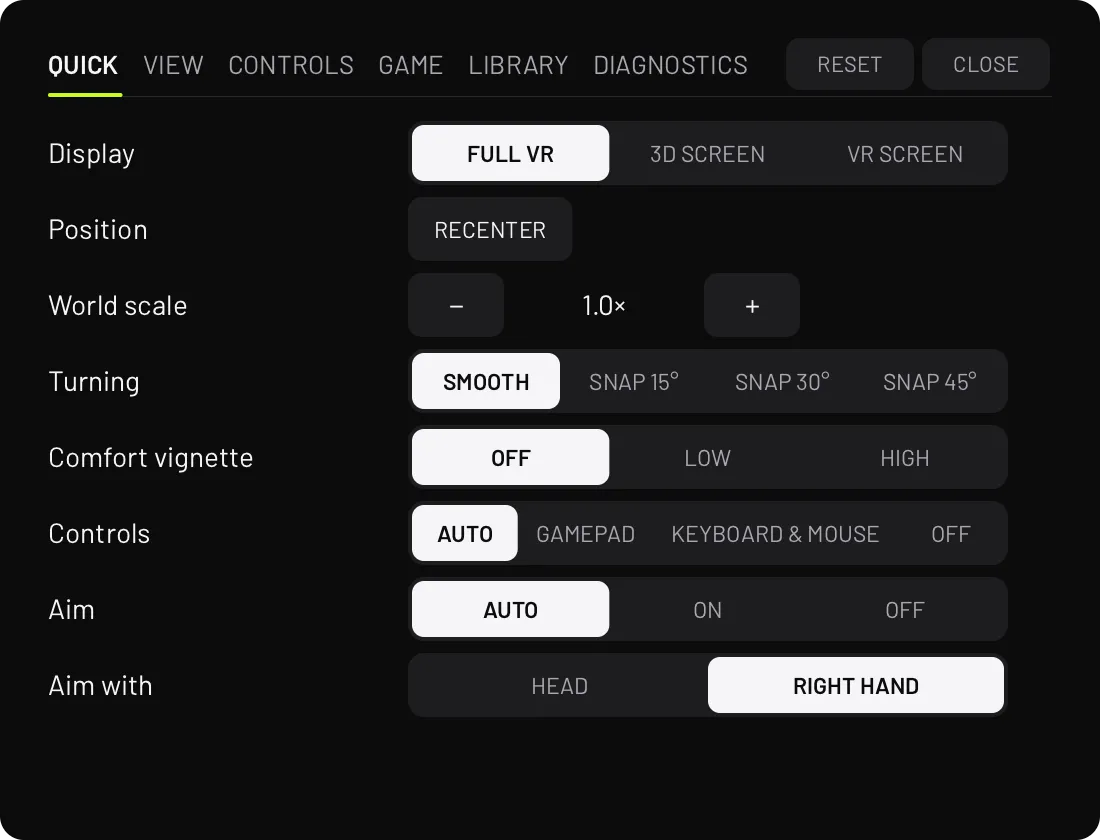
In the game, double-tap the left menu button, or press F11, for the VR menu. The install guide has the full steps and the Linux launch options. If the game starts flat, the troubleshooting guide goes through the causes.
Does it change the game?
PortXR adds its files to the game folder and records every one of them. Remove VR puts the folder back byte for
byte, and nothing else on your PC changes. Your settings and scripts are kept apart, in %APPDATA%\PortXR.
How far along it is
PortXR is in early access. Unity, Unreal Engine and Godot are covered; Unreal Engine support requires more testing, and Linux support is experimental. If you try a game, a game report adds it to the list, also when it just worked.
Other ways to get a flat game into a headset exist, from mods made for one game to virtual screens. Ways to play a flat game in VR compares them, including when a mod made for one game is the better pick.